OxiPNG vs OptiPNG
Putting two of the best PNG optimizers head-to-head

We previously wrote about OxiPNG and its benefits in this post, and we’re happy to share that it became one of our best-read articles on the website. Seeing its popularity, I decided to bring in OptiPNG, another famous PNG optimizer, and run a head-to-head comparison to see which one performs better. Let’s find out.
Brief Introductions
OptiPNG is a single-threaded PNG optimizer written in C that performs lossless compression to produce smaller file sizes. It is very easy to use via the command line (CLI). OptiPNG can also convert other external formats (BMP, GIF, PNM, and TIFF) into optimized PNGs.
OxiPNG is a modern, multithreaded lossless PNG/APNG compression optimizer written in Rust. Just like OptiPNG, it is incredibly easy to use via the command line (CLI).
So, how do these optimizers compress what seems to be a lossless format?
I suggest reading “Can we compress PNG files?” as a starter.
While it’s accurate that PNG is a lossless format, there are methods to compress it losslessly—and, if required, push it further using lossy techniques for even greater gains.
Broadly, the following techniques are leveraged:
-
Filtering + Compression with DEFLATE (LZ77 and Huffman)
Filtering/Delta Filtering: Pixels are passed through a lossless process that produces a filtered byte sequence. It does not compress the data itself, but rather makes it more compressible.
OxiPNG leverages Zopfli, a highly optimized DEFLATE encoder that produces slightly better savings than standard zlib/deflate implementations.
DEFLATE: The filtered sequence is then passed through DEFLATE, which uses a combination of LZ77 and Huffman algorithms for lossless compression.
-
Metadata Removal: This removes metadata from the output images, which can save a few KBs when you do not need this additional data attached to the file.
-
Color Type / Bit-Depth Reduction: Optimizers can smartly reduce the bit depth if an image contains very few colors (like a static logo with a few solid colors) and keep it visually lossless. However, true color quantization is a lossy technique. You need to be careful when forcing lossy quantization on photographic images or images with many colors, as this can lead to significant visual degradation.
-
Alpha Channel Reduction: This technique allows further compression by altering the values of fully transparent pixels. If the pixels in this channel are fully opaque, they can be stored entirely in a much cheaper
tRNSchunk.
A combination of the above techniques is generally what allows these optimizers to give you great byte savings. You can choose not to leverage any lossy techniques if you want the output to remain 100% lossless.
You can follow the instructions here for OxiPNG installation.
OptiPNG installation on MacOS:
brew install optipng
Comparison
Please note: We are using the decimal system (1 KB = 1000 Bytes) for calculations here.
Pic 1: Coderevere logo
Original PNG (39.9 KB):

Let us now try to compress the Coderevere logo losslessly using both optimizers.
First, let’s establish our testing baseline:
oxipng -help

# Losslessly improve compression of PNG files

# Usage: oxipng [OPTIONS] <files>...

# Arguments:
#   <files>...  File(s) to compress (use '-' for stdin)

# Options:
#   -o, --opt <level>           Optimization level (0-6, or max) [default: 2]
#   -r, --recursive             Recurse input directories, optimizing all PNG files
#       --dir <directory>       Write output file(s) to <directory>
#       --out <file>            Write output file to <file>
#       --stdout                Write output to stdout
#   -p, --preserve              Preserve file permissions and timestamps if possible
#   -d, --dry-run               Do not write any files, only show compression results
#   -s                          Strip safely-removable chunks, same as '--strip safe'
#       --strip <mode>          Strip metadata (safe, all, or comma-separated list)
#                               CAUTION: 'all' will convert APNGs to standard PNGs
#       --keep <list>           Strip all metadata except in the comma-separated list
#   -a, --alpha                 Perform additional alpha channel optimization
#   -i, --interlace <mode>      Set PNG interlacing (off, on, keep) [default: off]
#       --scale16               Forcibly reduce 16-bit images to 8-bit (lossy)
#   -v, --verbose...            Show per-file info (use multiple times for more detail)
#   -q, --quiet                 Suppress all output messages
#   -j, --json                  Print results as JSON
#   -f, --filters <list>        Filters to try (0-9; see '--help' for details)
#       --fast                  Use fast filter evaluation
#       --zc <level>            Deflate compression level (0-12)
#       --nb                    Do not change bit depth
#       --nc                    Do not change color type
#       --np                    Do not change color palette
#       --ng                    Do not change to or from grayscale
#       --nx                    Do not perform any transformations
#       --nz                    Do not recompress unless transformations occur
#       --fix                   Disable checksum validation
#       --force                 Write the output even if it is larger than the input
#   -z, --zopfli                Use the much slower but stronger Zopfli compressor
#       --zi <iterations>       Number of Zopfli iterations [default: 15]
#       --timeout <secs>        Maximum amount of time to spend on optimizations
#       --max-raw-size <bytes>  Skip image if the decompressed size exceeds this limit
#   -t, --threads <num>         Number of threads to use [default: num logical CPUs]
#       --sequential            Process multiple files sequentially
#   -h, --help                  Print help (see more with '--help')
#   -V, --version               Print version

# Run `oxipng --help` to see full details of all options

optipng -help

# Synopsis:
#     optipng [options] files ...
# Files:
#     Image files of type: PNG, BMP, GIF, PNM or TIFF
# Basic options:
#     -?, -h, -help	show this help
#     -o <level>		optimization level (0-7)		[default: 2]
#     -v			run in verbose mode / show copyright and version info
# General options:
#     -backup, -keep	keep a backup of the modified files
#     -clobber		overwrite existing files
#     -fix		enable error recovery
#     -force		enforce writing of a new output file
#     -preserve		preserve file attributes if possible
#     -quiet, -silent	run in quiet mode
#     -simulate		run in simulation mode
#     -out <file>		write output file to <file>
#     -dir <directory>	write output file(s) to <directory>
#     --			stop option switch parsing
# Optimization options:
#     -f <filters>	PNG delta filters (0-5)			[default: 0,5]
#     -i <type>		PNG interlace type (0-1)
#     -zc <levels>	zlib compression levels (1-9)		[default: 9]
#     -zm <levels>	zlib memory levels (1-9)		[default: 8]
#     -zs <strategies>	zlib compression strategies (0-3)	[default: 0-3]
#     -zw <size>		zlib window size (256,512,1k,2k,4k,8k,16k,32k)
#     -full		produce a full report on IDAT (might reduce speed)
#     -nb			no bit depth reduction
#     -nc			no color type reduction
#     -np			no palette reduction
#     -nx			no reductions
#     -nz			no IDAT recoding
# Editing options:
#     -snip		cut one image out of multi-image or animation files
#     -strip <objects>	strip metadata objects (e.g. "all")
# Optimization levels:
#     -o0		<=>	-o1 -nx -nz				(0 or 1 trials)
#     -o1		<=>	-zc9 -zm8 -zs0 -f0			(1 trial)
#     		(or...)	-zc9 -zm8 -zs1 -f5			(1 trial)
#     -o2		<=>	-zc9 -zm8 -zs0-3 -f0,5			(8 trials)
#     -o3		<=>	-zc9 -zm8-9 -zs0-3 -f0,5		(16 trials)
#     -o4		<=>	-zc9 -zm8 -zs0-3 -f0-5			(24 trials)
#     -o5		<=>	-zc9 -zm8-9 -zs0-3 -f0-5		(48 trials)
#     -o6		<=>	-zc1-9 -zm8 -zs0-3 -f0-5		(120 trials)
#     -o7		<=>	-zc1-9 -zm8-9 -zs0-3 -f0-5		(240 trials)
#     -o7 -zm1-9	<=>	-zc1-9 -zm1-9 -zs0-3 -f0-5		(1080 trials)
# Notes:
#     The combination for -o1 is chosen heuristically.
#     Exhaustive combinations such as "-o7 -zm1-9" are not generally recommended.
# Examples:
#     optipng file.png						(default speed)
#     optipng -o5 file.png					(slow)
#     optipng -o7 file.png					(very slow)
The commands above confirm that both tools use the -o flag to apply the level of optimization. The highest level is 6 for OxiPNG and 7 for OptiPNG. These are the slowest options, but they also apply the highest possible compression.
Let’s go with the highest levels for this test:
OptiPNG output at level 7 (24.1 KB):

optipng -o7 crlogo-li.png
** Processing: crlogo-li.png
1100x400 pixels, 4x8 bits/pixel, RGB+alpha
Input IDAT size = 39107 bytes
Input file size = 39915 bytes

Trying:
  zc = 9  zm = 9  zs = 0  f = 0		IDAT size = 23377
  zc = 9  zm = 8  zs = 0  f = 0		IDAT size = 23317

Selecting parameters:
  zc = 9  zm = 8  zs = 0  f = 0		IDAT size = 23317

Output IDAT size = 23317 bytes (15790 bytes decrease)
Output file size = 24101 bytes (15814 bytes = 39.62% decrease)
This is an incredible 39.6% byte savings.
OxiPNG output at level 6 (23.2 KB):

oxipng -o6 crlogo-li.png
Files processed: 1/1
Input size: 39.0 KiB (39915 bytes)
Output size: 22.7 KiB (23272 bytes)
Total saved: 16.3 KiB (41.70%)
OxiPNG wins this race with 41.7% savings.
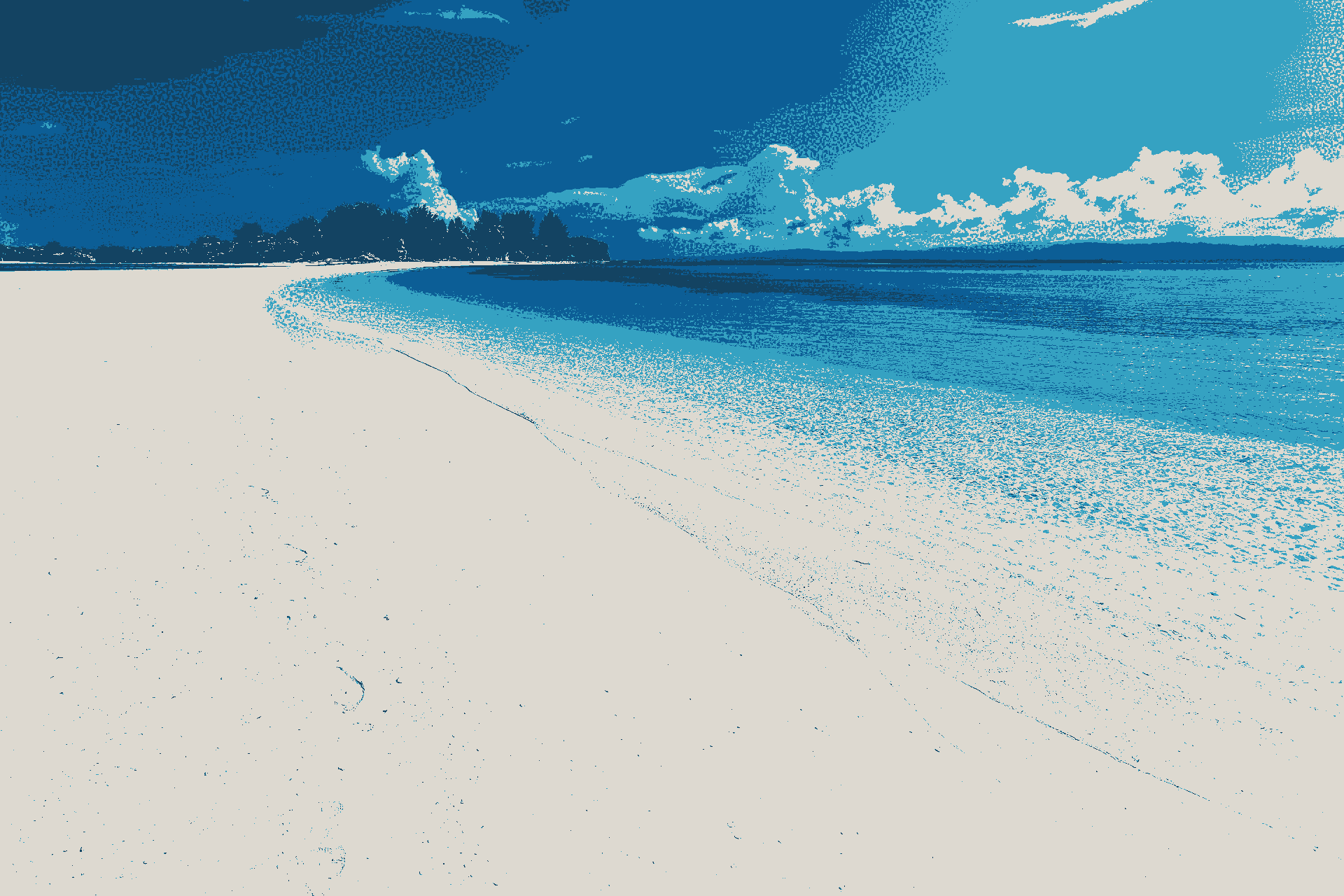
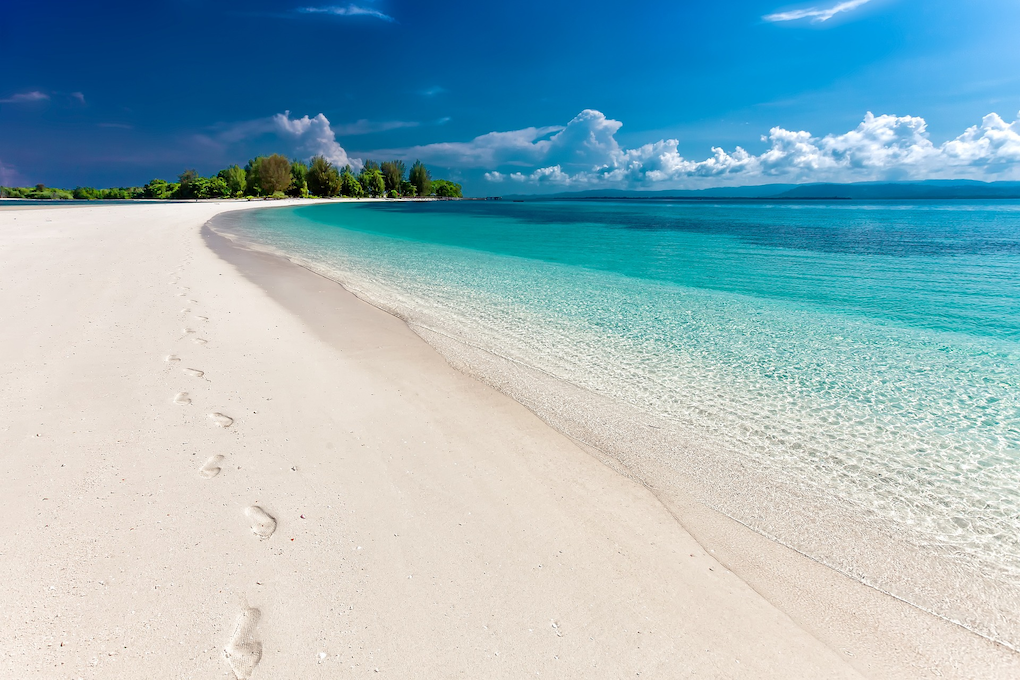
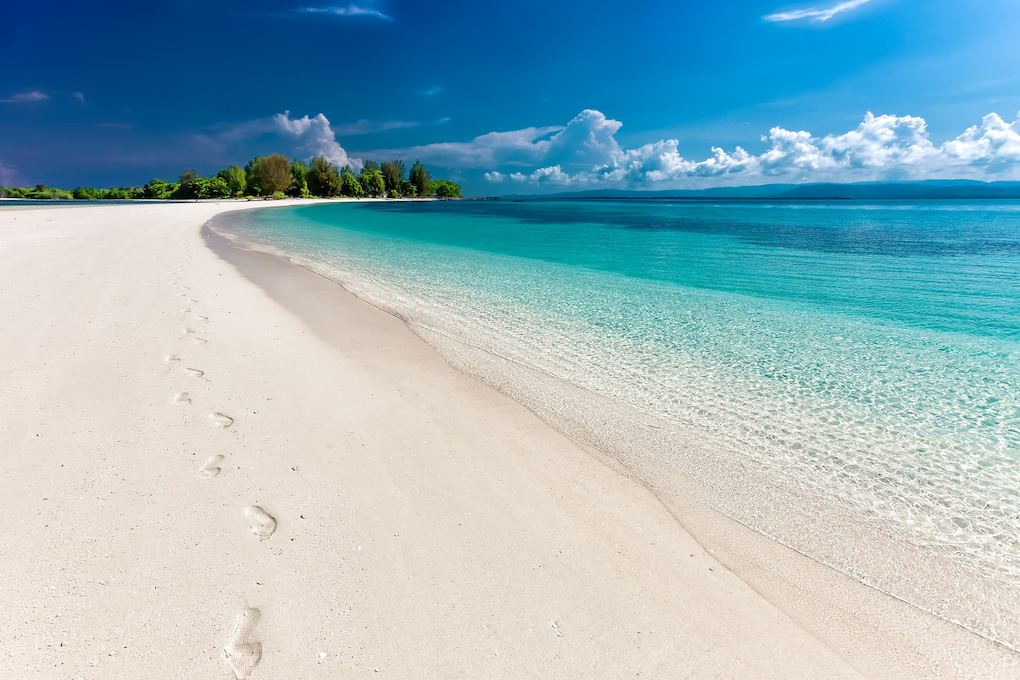
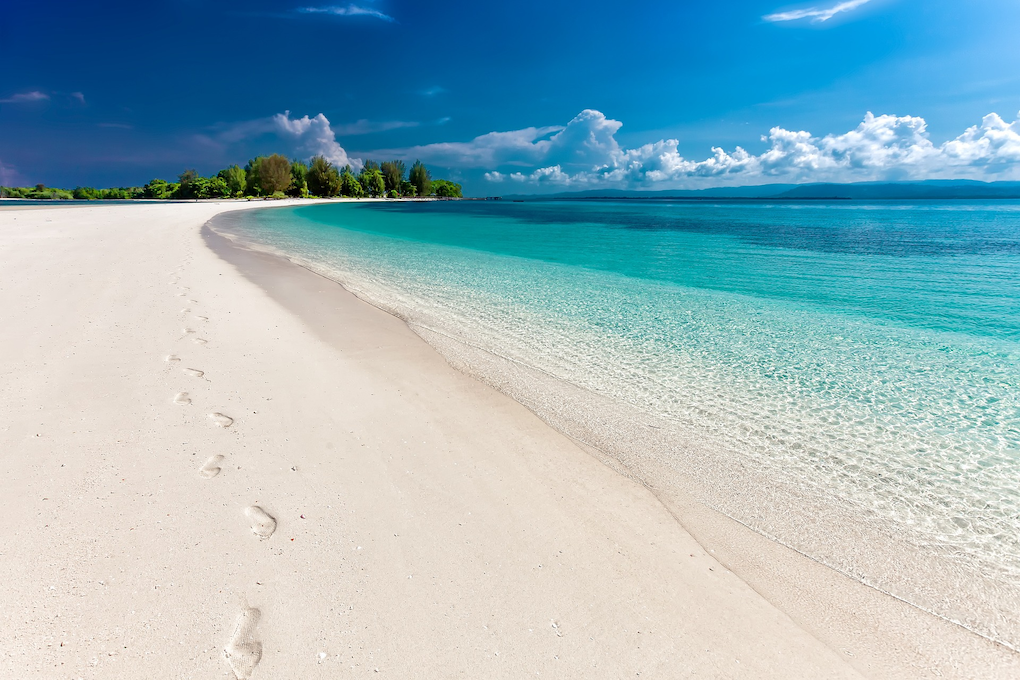
Pic 2: The Beach Let us now switch to a photographic image of a beach. Let’s see if these optimizers have any impact on heavier, more complex images.
Original PNG (1.2 MB):
OptiPNG output at level 7 (1.01 MB):
optipng -o7 beach.png
** Processing: beach.png
1020x680 pixels, 4x8 bits/pixel, RGB+alpha
Reducing image to 3x8 bits/pixel, RGB
Input IDAT size = 1207817 bytes
Input file size = 1211786 bytes

Trying:
  zc = 9  zm = 9  zs = 0  f = 1		IDAT size = 1030157
  zc = 9  zm = 9  zs = 0  f = 3		IDAT size = 1025636
  zc = 9  zm = 9  zs = 0  f = 5		IDAT size = 1008662

Selecting parameters:
  zc = 9  zm = 9  zs = 0  f = 5		IDAT size = 1008662

Output IDAT size = 1008662 bytes (199155 bytes decrease)
Output file size = 1011755 bytes (200031 bytes = 16.51% decrease)
Okay, that took some time to process, but not bad! Not bad at all. That is a solid 16.51% savings.
OxiPNG output at level 6 (0.95 MB):
oxipng -o6 beach.png
Files processed: 1/1
Input size: 1.16 MiB (1211786 bytes)
Output size: 931 KiB (952927 bytes)
Total saved: 253 KiB (21.36%)
Even better, as expected. Very good savings of 21.36%. OxiPNG wins again by a decent margin.
AND, as expected, OxiPNG was extremely fast thanks to its Rust-based optimizer.
Pic 3: Microsoft Logo Let us try one more.
Original PNG (39 KB):

OptiPNG output at level 7 (26.38 KB):

optipng -o7 microsoft-logo.png
** Processing: microsoft-logo.png
1666x690 pixels, 4x8 bits/pixel, RGB+alpha
Reducing image to 8 bits/pixel, 30 colors (25 transparent) in palette
Input IDAT size = 24142 bytes
Input file size = 39087 bytes

Trying:
  zc = 9  zm = 9  zs = 0  f = 0		IDAT size = 11301
  zc = 9  zm = 9  zs = 1  f = 0		IDAT size = 11301

Selecting parameters:
  zc = 9  zm = 9  zs = 1  f = 0		IDAT size = 11301

Output IDAT size = 11301 bytes (12841 bytes decrease)
Output file size = 26385 bytes (12702 bytes = 32.50% decrease)
Great savings at 32.50%.
OxiPNG output at level 6 (24.53 KB):

oxipng -o6 microsoft-logo.png
Files processed: 1/1
Input size: 38.2 KiB (39087 bytes)
Output size: 24.0 KiB (24531 bytes)
Total saved: 14.2 KiB (37.24%)
Once again, OxiPNG pulls ahead with an impressive 37.24%.
With a flawless 3-0 sweep in our tests, it rightfully claims the crown. Meet your undefeated, undisputed PNG champion of the world: OxiPNG.
This brings us to the end of this post. I hope you enjoyed reading it. Thank you for your time!