Oxipng: Lossless PNG Optimizer
What is Oxipng? A quick guide to the Rust-based PNG optimizer.

What is Oxipng?
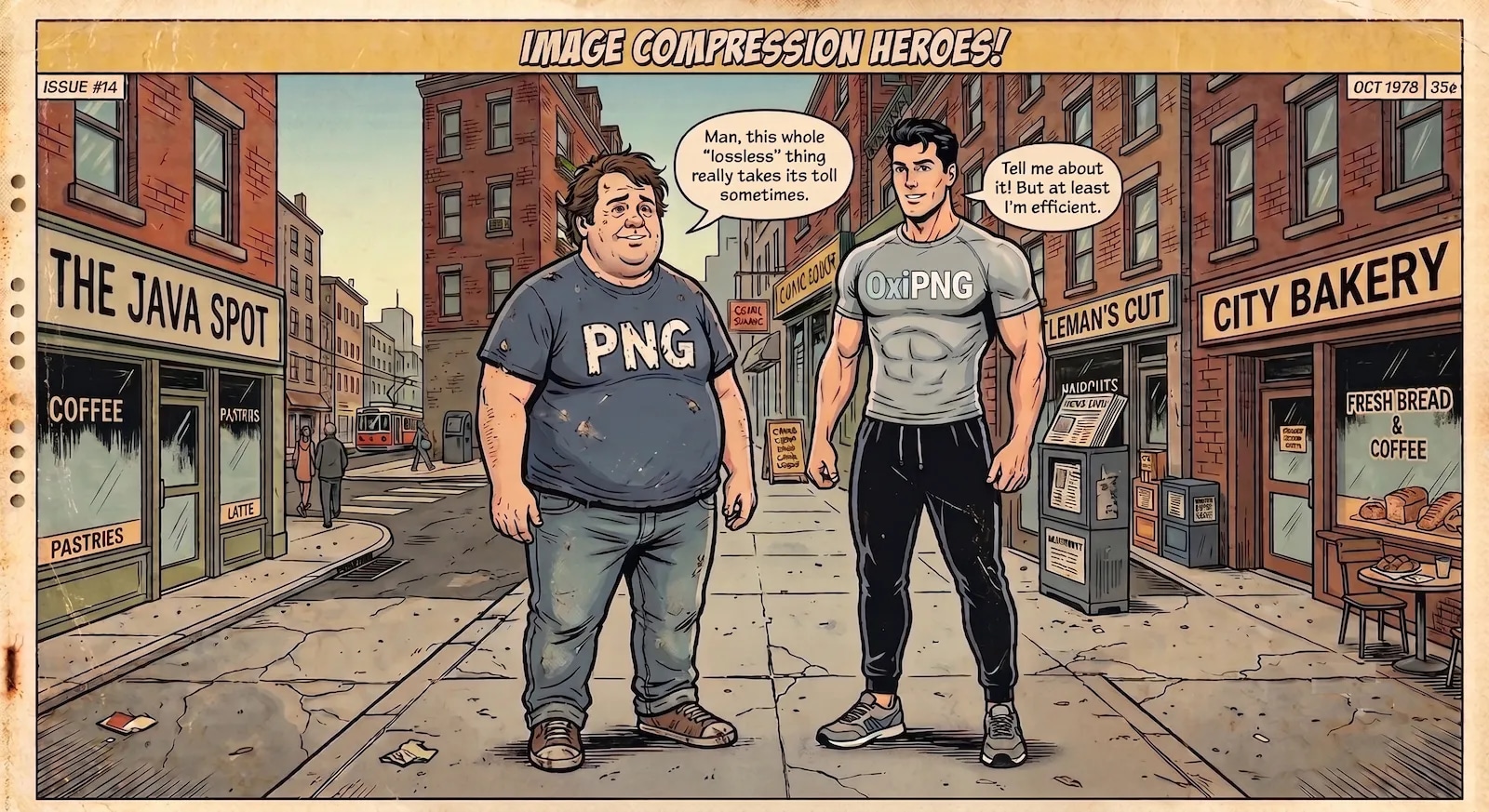
Oxipng is a multithreaded, lossless PNG/APNG compression optimizer written in Rust. It is incredibly easy to use via the command line (CLI), which I will demonstrate in this post.
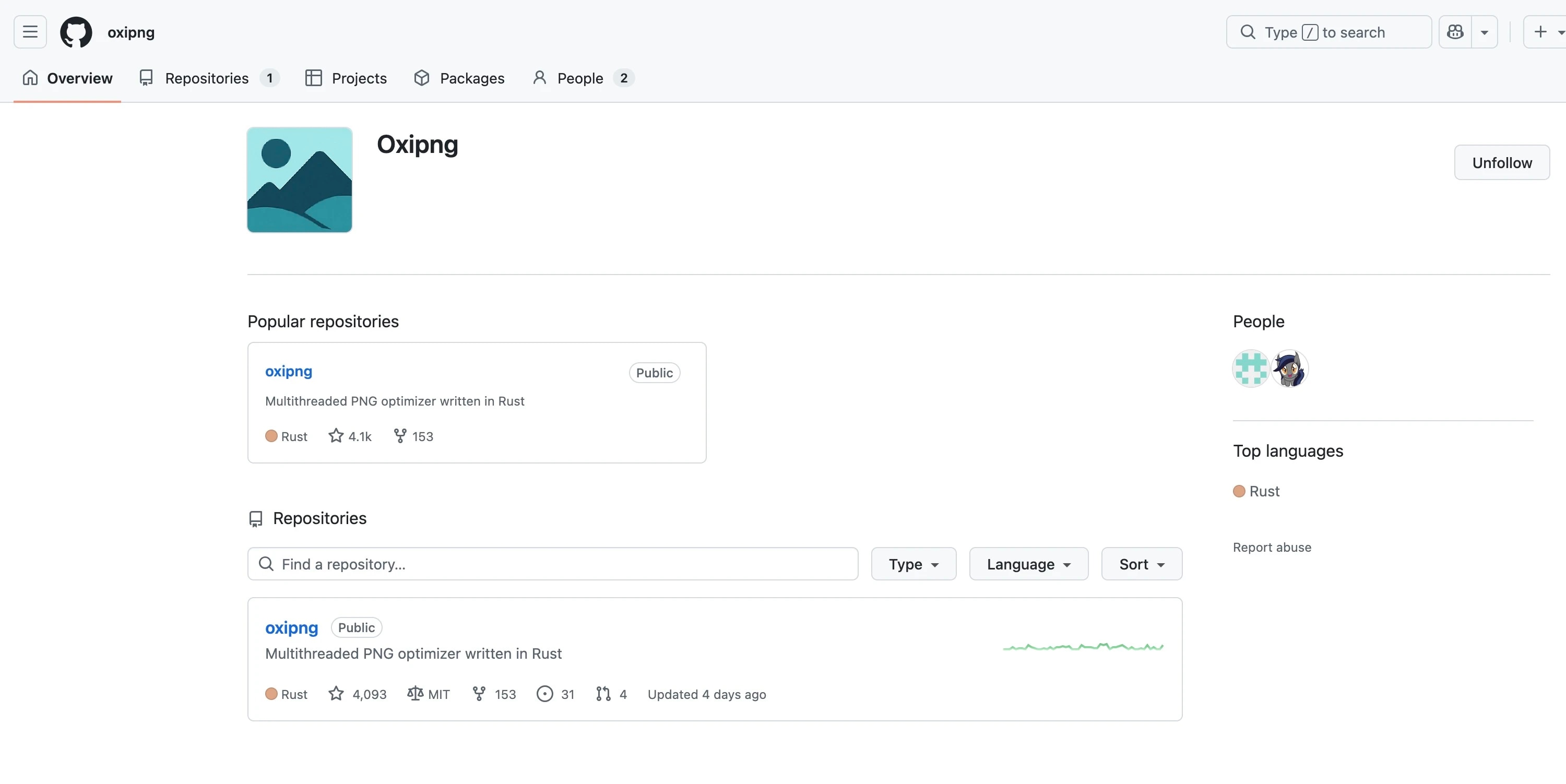
Oxipng GitHub Page
Installation
I use macOS. If you are on a Mac as well, the commands below will help you set it up:
Install the Rust package manager:
curl --proto '=https' --tlsv1.2 https://sh.rustup.rs -sSf | sh
Install Oxipng:
cargo install oxipng
Additional Commands (to add Cargo’s bin folder to your system’s PATH):
echo 'export PATH="$HOME/.cargo/bin:$PATH"' >> ~/.zshrc
source ~/.zshrc
oxipng --version
# oxipng 10.1.1
Convert
Pic 1: Coderevere logo
Let’s take the Coderevere logo, which is a standard PNG file, and run it through Oxipng to see what kind of gains we can realize.
oxipng -o 6 --strip safe --alpha crlogo-li.png
Files processed: 1/1
Input size: 39.0 KiB (39915 bytes)
Output size: 22.0 KiB (22545 bytes)
Total saved: 17.0 KiB (43.52%)
That is 43% savings just by using the Oxipng library. An incredible result.
Original PNG (39 KB):
OxiPNG output (22 KB):
Explaining the Flags
So, what exactly do the flags -o 6 –strip safe –alpha do in the command above?
From the Oxipng documentation:
Optimization: -o 0 through -o 6 (or -o max), lower is faster, higher is better compression. The default (-o 2) is quite fast and provides good compression. Higher levels can be notably better* but generally have increasingly diminishing returns.
Strip: Used to remove metadata info from processed images. Used via –strip [safe,all]. Can save a few kilobytes if you don’t need the metadata. “Safe” removes only metadata that will never affect rendering of the image. “All” removes all metadata that is not critical to the image. You can also pass a comma-separated list of specific metadata chunks to remove. -s can be used as a shorthand for –strip safe.
Alpha: –alpha can improve compression of images with transparency, by altering the color values of fully transparent pixels. This is generally recommended, but take care as this is technically a lossy transformation and may be unsuitable for some specific applications.
Is the Output Truly Lossless?
While the output is visually lossless, it is not entirely lossless at the data level. As you can see from the documentation, the –alpha flag utilizes a lossy transformation on hidden data to give us better byte savings, even though the image remains visually identical.
How does it optimize the transparent pixels?
As mentioned above, even fully transparent pixels hold RGB color data (e.g., a fully transparent blue pixel). Because you cannot see this color anyway, the image compresses much more efficiently if all transparent pixels are re-encoded to a single, uniform color value.
The Truecolor section from the official W3C specification confirms this logic:
Each pixel consists of a triplet of samples: red, green, blue. An optional alpha channel can be specified as a single triplet of red, green, blue samples: pixels of the image whose red, green, blue samples are identical to the red, green, blue samples of the alpha channel are fully transparent; others are fully opaque. If the alpha channel is not present, all pixels are fully opaque.
The 12.3 Alpha channel creation section from the same spec shows the flexibility allowed in the official PNG format:
In this case, fully transparent pixels should all be assigned the same color value for better compression.
Please note: We previously discussed the color quantization technique in detail, which also allows us to reduce the file size of a PNG file. You can read that post here. While it is another valid way to optimize PNG files, we are not leveraging that technique for the purpose of this article.
Strip
In addition to the alpha flag, we are leveraging the strip option in “safe” mode to remove metadata that has no impact on how the image renders. Safe mode retains critical metadata, such as color profiles.
Details below:
oxipng --help

# Response
-s
          Strip safely-removable chunks, same as '--strip safe'

      --strip <mode>
          Strip metadata chunks, where <mode> is one of:

              safe    =>  Strip all non-critical chunks, except for the following:
                              cICP, iCCP, sRGB, pHYs, acTL, fcTL, fdAT
              all     =>  Strip all non-critical chunks
              <list>  =>  Strip chunks in the comma-separated list, e.g. 'bKGD,cHRM'

          CAUTION: 'all' will convert APNGs to standard PNGs.
Convert Without Flags
What if we run it without those extra commands?
oxipng crlogo-li.png
Files processed: 1/1
Input size: 39.0 KiB (39915 bytes)
Output size: 23.6 KiB (24133 bytes)
Total saved: 15.4 KiB (39.54%)
This is still an incredible result. Without any of the flags used in the previous example, we still saved ~40% in file size. Amazing stuff.
OxiPNG output (23.6 KB):
Pic 2: Google logo
Let’s try one more image (the Google logo).
Original PNG (30.1 KB):

oxipng -o 6 --strip safe --alpha google.png
Files processed: 1/1
Input size: 30.1 KiB (30788 bytes)
Output size: 23.5 KiB (24033 bytes)
Total saved: 6.60 KiB (21.94%)
OxiPNG output (23.5 KB):

Another great result with ~22% savings.
This brings me to the end of this post. I plan to cover the different lossless formats more extensively in an upcoming post.