Convert RAW video to Mezzanine/Compressed Formats
Professional Video Editor

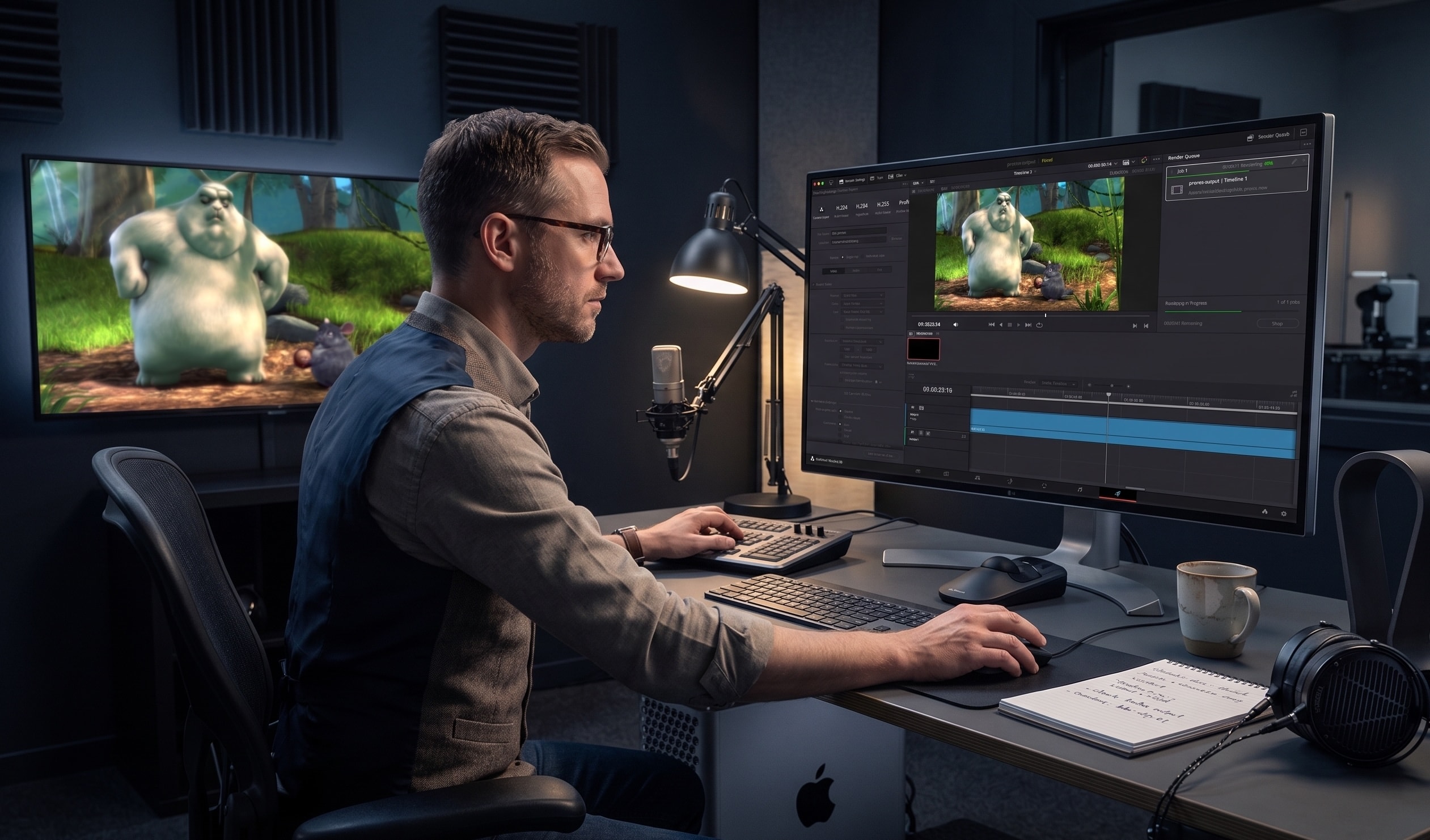
There are many great tools out there to edit/compress your RAW/Log video files to a mezzanine/intermediate format or a compressed video with an inter-frame codec.
I prefer using the free version of DaVinci Resolve. It’s a great video editing software for such use-cases. Sharing below a brief instruction set to convert RAW uncompressed videos from your camera to Apple ProRes mezzanine format for storage.
Oftentimes you may have a pristine RAW/Log video footage recorded from your cameras or downloaded off the internet but there may be a need to compressed for storage/file sharing. To achieve this while still maintaining the visually lossless attributes of these videos, you can convert them using a mezzanine/intermediate codec like ProRes or APV.
You could use a popular video editing tool to convert using a consumption codec too like H.264/H.265/AV1 etc. These result in much smaller file sizes.
The H.264s, 265s, AV1s etc. are consumption codecs that are primarily used for last mile delivery of videos over internet or over a physical medium such as DVD, Blu-ray discs etc. These codecs naturally prioritize low file sizes for various reasons such as internet bandwidth limitations, disk size limitations etc.
In contrast, contribution codecs like APV and ProRes prioritize quality over file size, as they are generally used for professional video editing and re-transcodes for future releases etc.
I recommend these blogs:
What are some of the popular video editing tools that offer professional-grade features?
- DaVinci Resolve
- Adobe Premiere Pro
- Final Cut Pro
- Avid Media Composer
- Lightworks
DaVinci Resolve
I use the free version of DaVinci Resolve quite extensively for many such tasks, as it is incredibly generous with the features provided for a free application.
DaVinci Resolve is a comprehensive non-linear video editing (NLE) application, originally developed by da Vinci Systems which was later acquired by Blackmagic Design. Available on macOS, Windows and Linux.
DaVinci Resolve is available in two flavors:
- DaVinci Resolve (Free version)
- DaVinci Resolve Studio (Paid version)
Let’s convert a RAW/Uncompressed video to Apple ProRes 422 format
I found an uncompressed version (albeit a 422 file at 8 bits) of the Big Buck Bunny video which is a large 45 GB file. DaVinci Resolve does not natively support .y4m (YUV4MPEG2) files. So the first thing I needed to do was to convert this to a friendly format while retaining the uncompressed attributes of the source file.
I used the below command to generate an uncompressed mov file with v210 codec to ensure it remains uncompressed.
ffmpeg -i bbb.y4m -c:v v210 bbb-o.mov

#Response
ffmpeg version 8.1 Copyright (c) 2000-2026 the FFmpeg developers
  built with Apple clang version 17.0.0 (clang-1700.6.4.2)
  configuration: --prefix=/opt/homebrew/Cellar/ffmpeg/8.1_1 --enable-shared --enable-pthreads --enable-version3 --cc=clang --host-cflags= --host-ldflags= --enable-ffplay --enable-gpl --enable-libsvtav1 --enable-libopus --enable-libx264 --enable-libmp3lame --enable-libdav1d --enable-libvmaf --enable-libvpx --enable-libx265 --enable-openssl --enable-videotoolbox --enable-audiotoolbox --enable-neon
  libavutil      60. 26.100 / 60. 26.100
  libavcodec     62. 28.100 / 62. 28.100
  libavformat    62. 12.100 / 62. 12.100
  libavdevice    62.  3.100 / 62.  3.100
  libavfilter    11. 14.100 / 11. 14.100
  libswscale      9.  5.100 /  9.  5.100
  libswresample   6.  3.100 /  6.  3.100
Input #0, yuv4mpegpipe, from 'bbb.y4m':
  Duration: 00:09:56.46, start: 0.000000, bitrate: 597197 kb/s
  Stream #0:0: Video: rawvideo (I420 / 0x30323449), yuv420p(progressive), 1920x1080, SAR 1:1 DAR 16:9, 24 fps, 24 tbr, 24 tbn
Stream mapping:
  Stream #0:0 -> #0:0 (rawvideo (native) -> v210 (native))
Press [q] to stop, [?] for help
Output #0, mov, to 'bbb-o.mov':
  Metadata:
    encoder         : Lavf62.12.100
  Stream #0:0: Video: v210 (v210 / 0x30313276), yuv422p(progressive), 1920x1080 [SAR 1:1 DAR 16:9], q=2-31, 1061683 kb/s, 24 fps, 12288 tbn
    Metadata:
      encoder         : Lavc62.28.100 v210
[out#0/mov @ 0x6000032f40c0] video:77301000KiB audio:0KiB subtitle:0KiB other streams:0KiB global headers:0KiB muxing overhead: 0.000146%
frame=14315 fps=285 q=-0.0 Lsize=77301113KiB time=00:09:56.45 bitrate=1061684.7kbits/s speed=11.9x elapsed=0:00:50.27
v210 is an uncompressed video codec/format, often used within a .mov container. ffmpeg supports it. v210 stands for uncompressed 422 video so while it does not apply algorithmic compression it discards 50% of the color data due to its 422 specification. This applies primarily to a RAW camera file shot in 4:4:4. Also bit depth is restricted to 10-bit with v210 codec/format.
Since our source is yuv420, with this conversion we now have a massive 79.16 GB output file. The increase in file size here is due to two factors- V210(ffmpeg) is padding the 8-bit data with empty zeroes to make it 10-bit, and duplicating the color data to fit the 4:2:2 container.
Now let’s convert this to ProRes 422 using DaVinci.
Converting v210 (.mov) to ProRes 422 HQ
(Note: DaVinci Resolve natively supports Apple ProRes export on macOS. Windows users may need to use third-party plugins or alternative software like Adobe Media Encoder for this specific step).
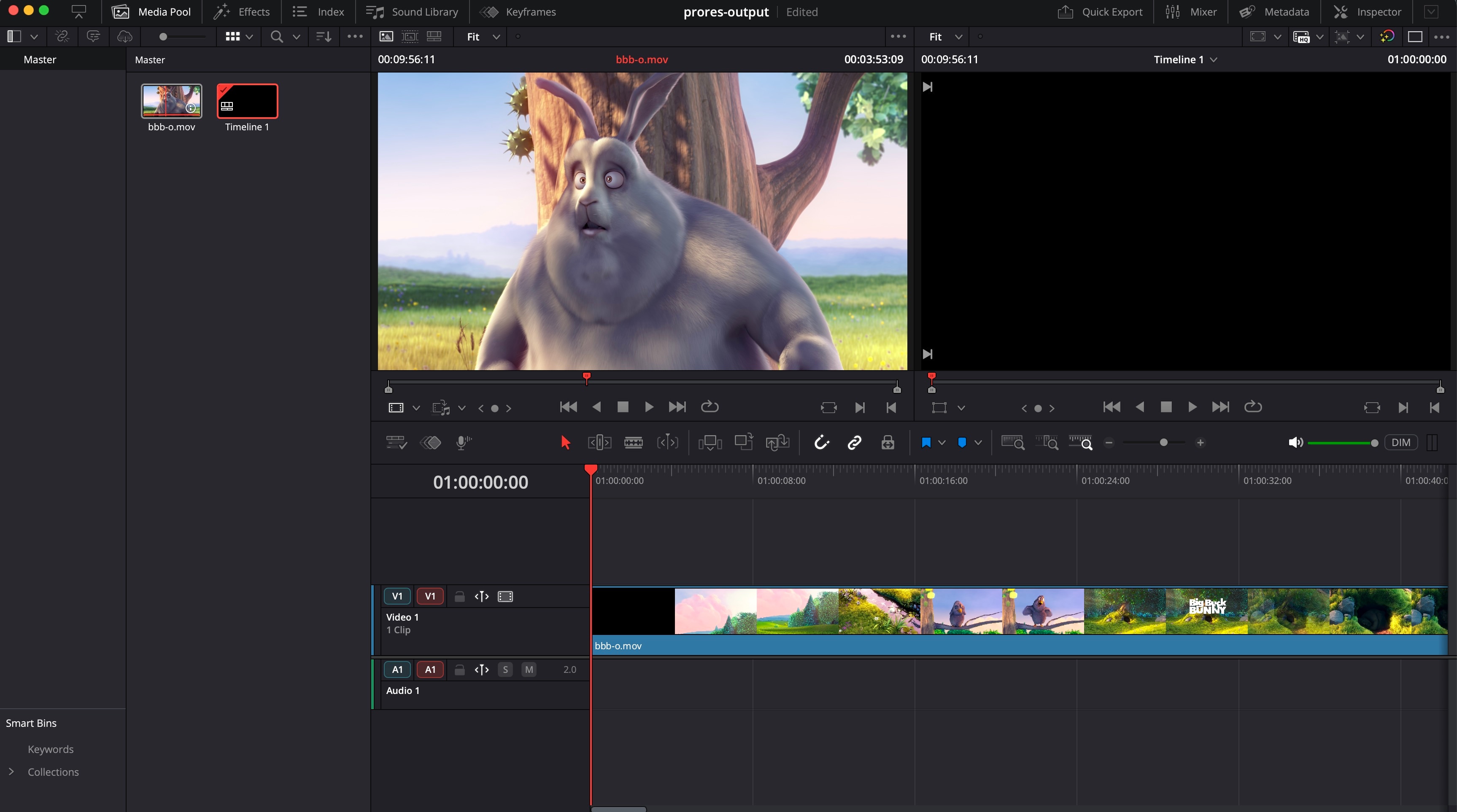
- Launch DaVinci Resolve and create a new project
- Go to the Edit page (via the tabs at the bottom)
- Import video (Cmd + I on MacOS)
- Drag it into the timeline
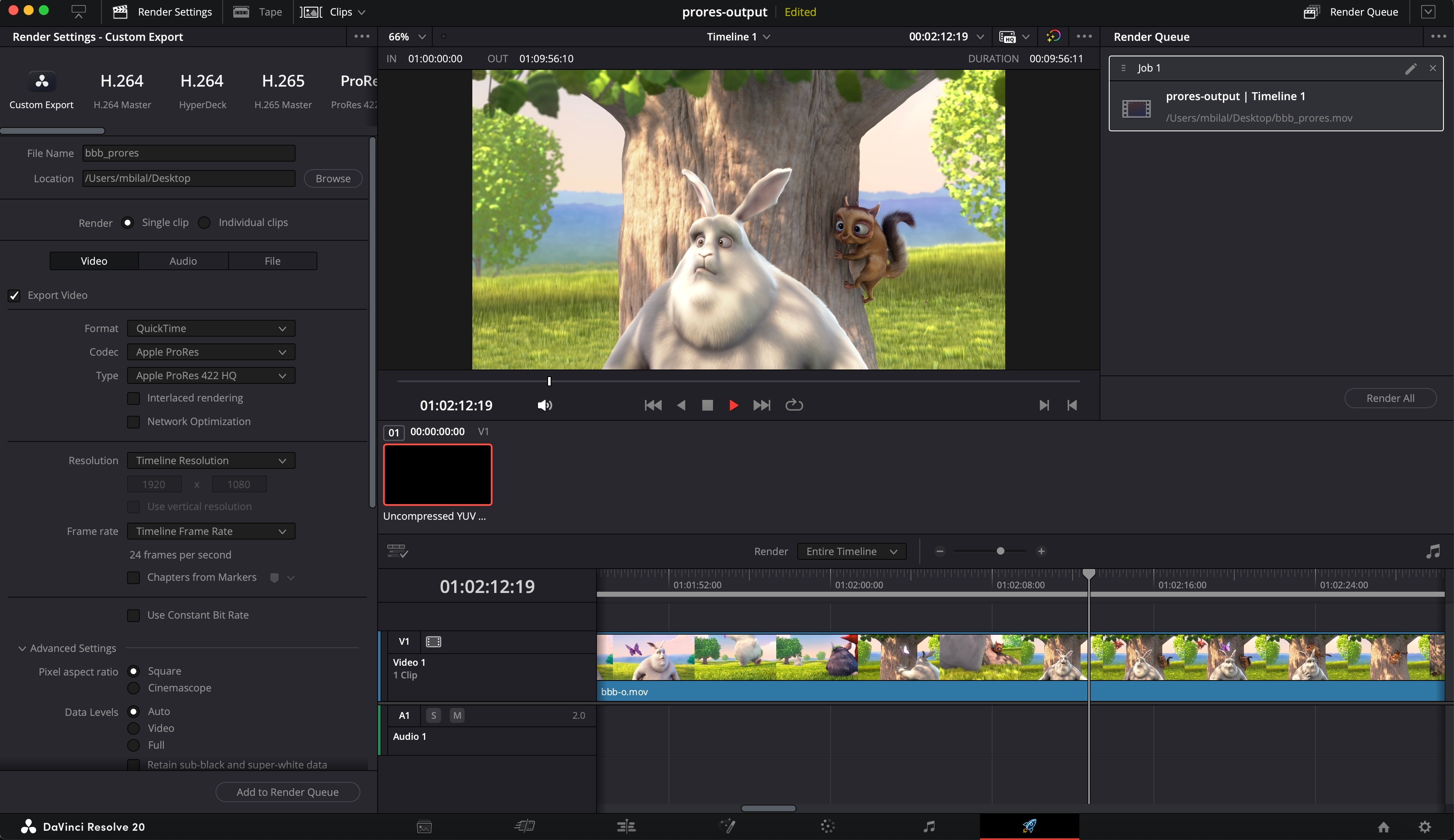
- Go to the Deliver page (the rocket ship icon at the bottom).
- Select the desired output settings (refer snapshots below)
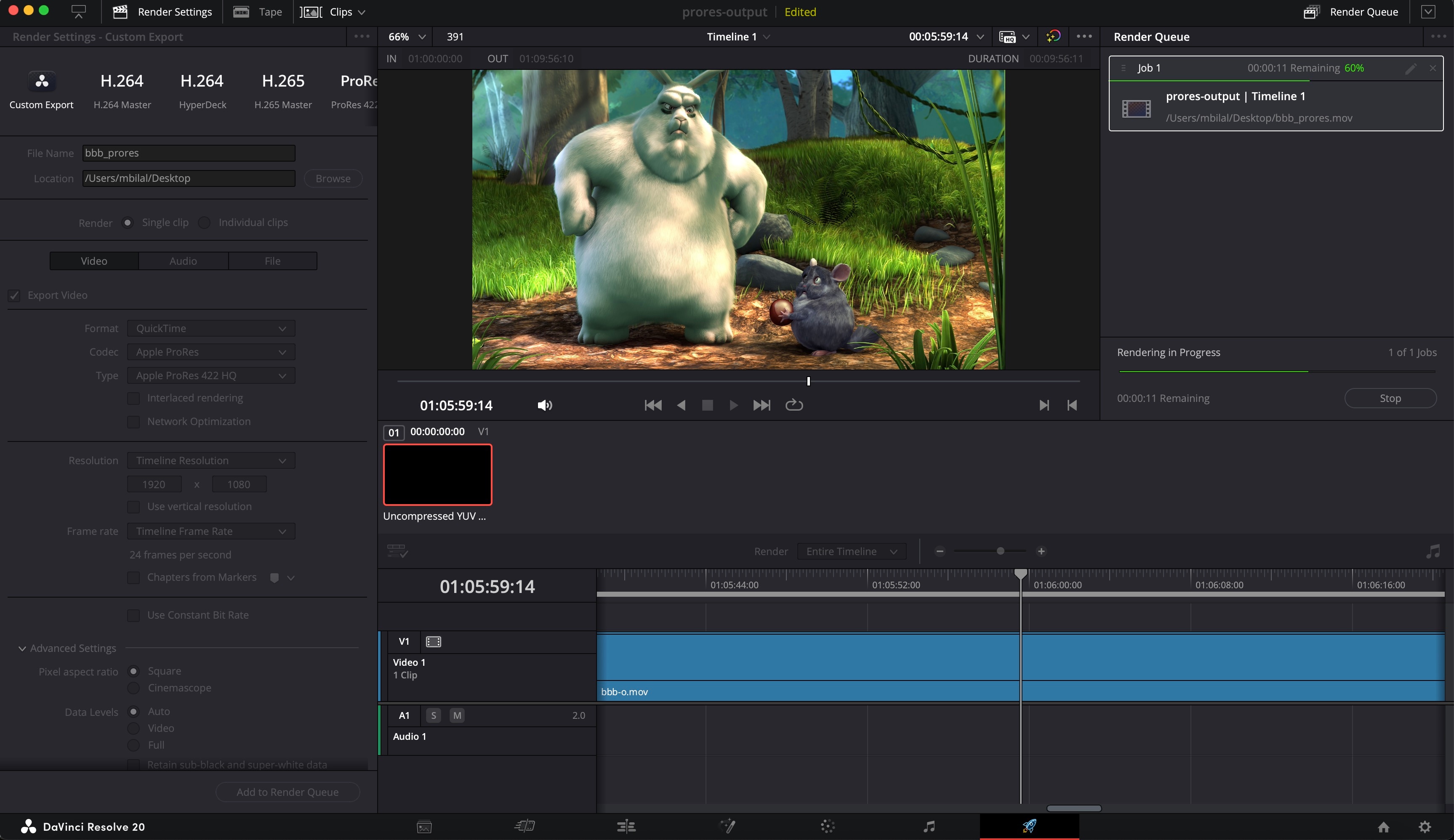
- Add to render queue
- Click - Render All to run the job